Run the iOS sample
Building and running Offline Tasks on iOS, and what to try once it runs.
The app is SwiftUI on the Swift package, against your own Supabase project. Its lists are live queries on the device's cache, every change goes through the package's queue, and photos go through the offline Storage bucket, so what you do offline reaches your project when the network comes back. It is the same app as the Android sample, with the same screens and words, in iOS's own idiom.
Prerequisites
- A Mac with Apple silicon, and Xcode 26 or later.
- An iOS 26 simulator, or a device on iOS 26. Simulators run arm64 only: the project builds for Apple silicon simulators and leaves out Intel ones.
- JDK 17, only to build the sample on this checkout (Build on this checkout).
- A Supabase project with the samples' schema: Set up Supabase. Run both of
its migrations: the second adds the two database functions Mark all done and the Sync tab's
Server section call (
complete_all_tasks()andtasks_done_count(created_since)), the bucket policy Replace photo and Move to another task need, andtasksandtask_photosin thesupabase_realtimepublication, which Live updates needs. Without a project, the app runs in demo mode.
Add your keys
Copy samples/ios/Configuration/Secrets.xcconfig.example to Secrets.xcconfig beside it, and put
in the project URL and its publishable key:
The URL has no https://, because // starts a comment in an xcconfig file; the app adds it. Git
ignores Secrets.xcconfig, so the keys never reach a commit. The build puts them in the app's
Info.plist. Without them the app still builds, and opens in demo mode.
Build and run
Open samples/ios/OfflineTasks.xcodeproj in Xcode, choose the OfflineTasks scheme and an iOS 26
simulator, and run. The project depends on the published Swift package,
https://github.com/nesfeder/supabase-offline-swift at an exact version, as your app would: Xcode
resolves it and downloads its prebuilt library the first time. Each release moves that version to
the one just published. On main, and at a release's tag until the pull request that follows the
release moves the pin, the sample's code can use API newer than the release it pins: if the project
does not build, build on this checkout instead.
From the command line:
cd samples/ios
xcodebuild build -project OfflineTasks.xcodeproj -scheme OfflineTasks \
    -destination 'platform=iOS Simulator,name=iPhone 17'
The tests, model tests on the testing product's in-memory client and two UI tests, run in demo mode and reach no project. On the published package:
scripts/test-ios-sample.sh --simulator <simulator UDID> --derived-data <a scratch folder> --published
To run on a device, add your team and a bundle identifier of your own to Secrets.xcconfig
(DEVELOPMENT_TEAM and OFFLINE_TASKS_BUNDLE_IDENTIFIER; the example file shows both).
The first launch signs in anonymously and opens on an empty list: add a task with the + button. Every row and photo belongs to that anonymous user, and supabase-swift keeps the session in the Keychain, so the next launch is the same user, offline too.
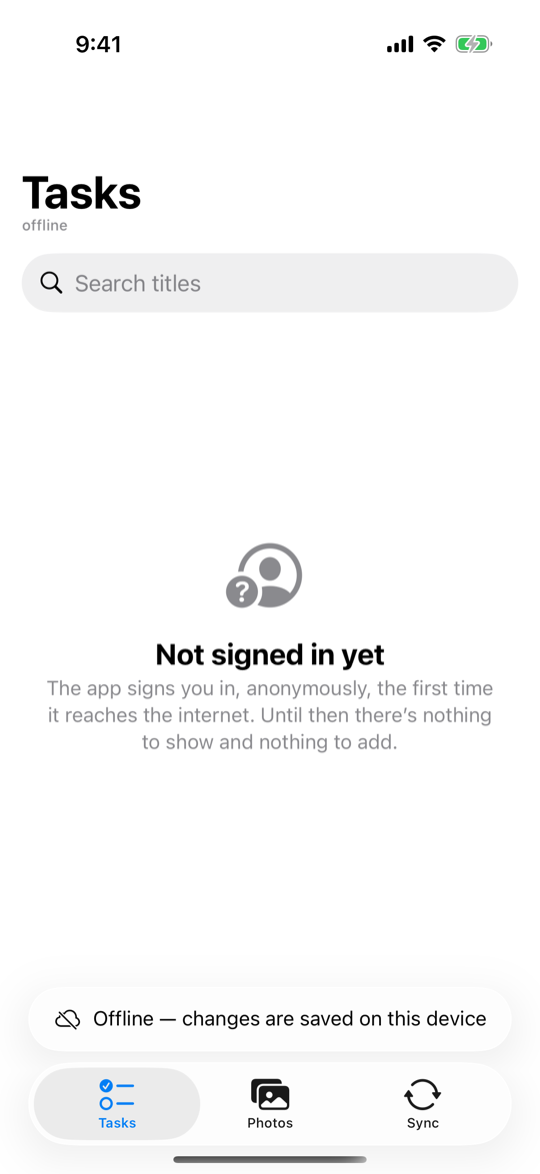
If the device is offline on the very first launch, there is no user yet. The list says it is not signed in, the + button is hidden, and the Sync tab's Queue an invalid title is switched off: every row needs its user, and only the server can create one. The app signs in as soon as it reaches the internet.
Build on this checkout
To build the sample against the Swift package in swift/ and the library beside it, as CI does,
open the workspace instead of the project. The package wraps a prebuilt library that a release
ships; from a checkout you build it yourself, once, and again after a change outside swift/. From
the repository root:
The script builds the library with Gradle (JDK 17; the first build downloads its toolchain, which
takes a few minutes) and copies it into swift/LocalCore, which git ignores; in a checkout the
package always takes the library from there. The workspace holds the project and the package in
swift/, which overrides the published package, so the sample builds on the code beside it.
Xcode overrides a package only with a folder named for the package's identity,
supabase-offline-swift, so the workspace names swift/ through the link
samples/ios/supabase-offline-swift.
The test script builds the workspace when it is not given --published:
Demo mode
Without keys, the app runs on the package's testing product: the in-memory client, talking to a
stand-in for the samples' project that the app carries (Demo/DemoServer.swift). The stand-in keeps
the schema's rules (each user reaches only their own rows and files, a blank title is refused, a
photo is one JPEG at its owner's path), answers the two database functions, and reports each row
change as Realtime would, so everything below works, but nothing is kept between launches. A
signed link it makes points at the stand-in and opens nowhere. The Tasks list and the Sync tab say
when the app is in demo mode. The tests, the UI tests and Xcode's previews use the same stand-in; the
launch argument -demo-mode opens it whatever the keys say.
Things to try
Go offline and keep working
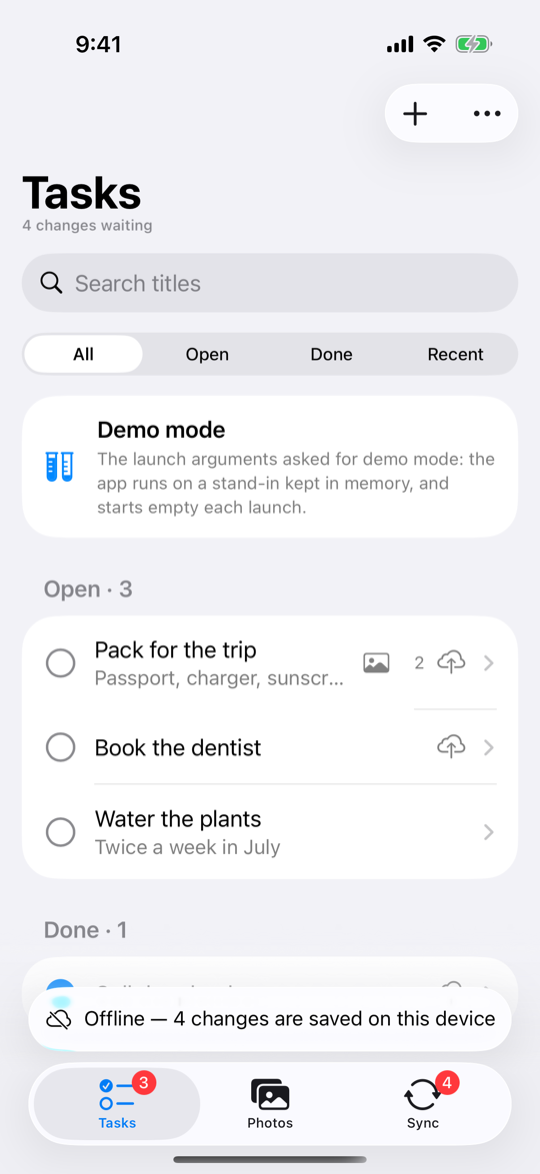
On the Sync tab, switch on Simulate offline. It cuts this app off from the server, as airplane mode would, until you switch it back or the app restarts; the rest of the device stays online.
Now add a task, clear another's notes, tick one done and swipe one away. Each change shows at once. A cloud mark on a row means its change has not reached the server yet; the status above the tab bar and the Sync tab's badge count the changes waiting. Pull to refresh: the read asks the server first and, offline, answers from the device, and the caption under the title says so ("From this device, 3 min ago"; online, "Updated just now"). A task you have never opened still opens offline: it is read from the list the device already holds.
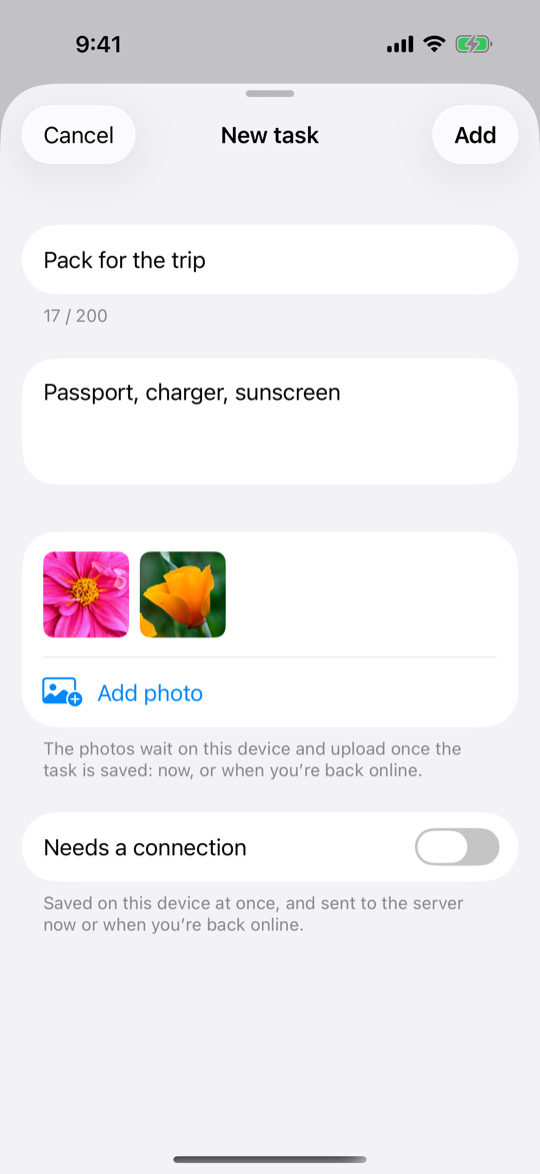
New task has a Needs a connection switch. Off, the default, the task is kept on the device
and sent when it can be, and the app says "Saved on this device"; on, it goes straight to the
server or not at all, so offline the sheet says why and keeps your text. Online, either way, the
app says the time the server stored it at: the row's updated_at, which the server sets, from the
row it sends back (created_at is the device's time).
Come back and watch it send
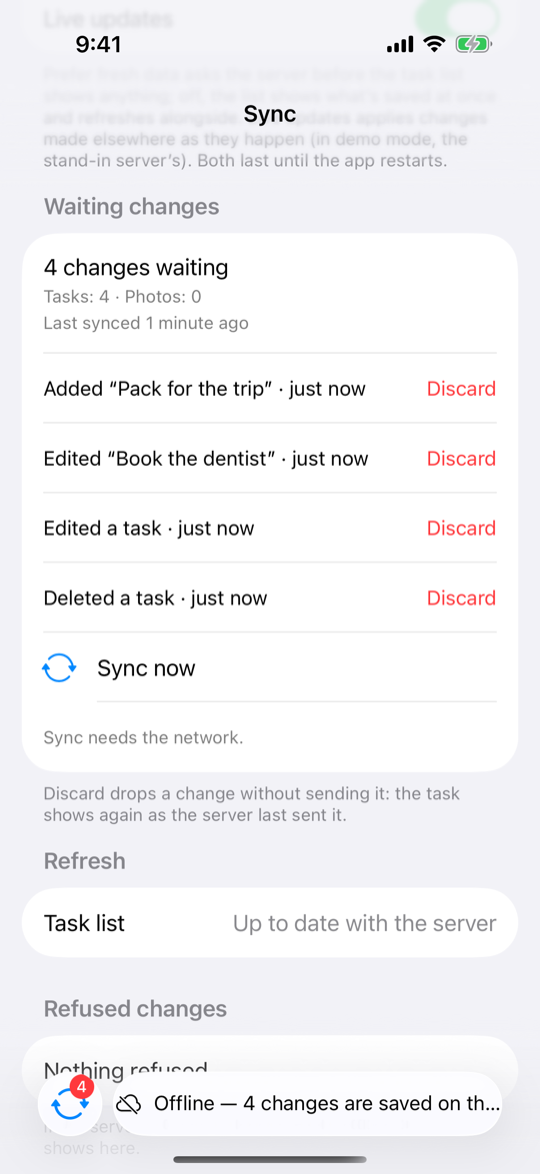
The Sync tab's Waiting changes lists each change, oldest first ("Added “Buy milk” · 2 min ago"), with Discard, which drops it unsent: the task shows again as the server last sent it. Sync now needs the network, so offline it is switched off; online, its report spells out what it sent, what the server refused, what still waits, what the server already had and what waited behind another table's change.
Switch Simulate offline off. The changes are sent in the order you made them, and the count drops to Nothing waiting. To see the server's copy, use Clear local cache under Local data: it deletes what the device holds, then reads the list again from your project.
Closing the app while offline loses nothing either: the queue is kept on the device and sent on the next launch that has the network. Simulate offline does not outlive the app, and a simulator has no airplane mode, so to launch with no network at all, turn off the Mac's Wi-Fi (the simulator shares it), or use airplane mode on a device.
Queue an invalid title
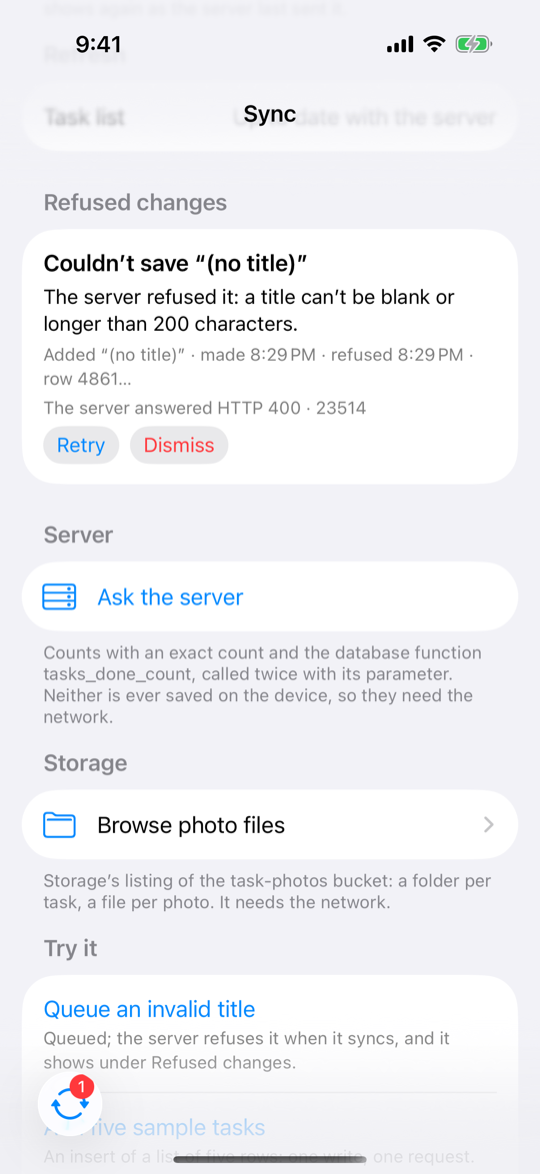
The schema refuses a blank title. Under Try it, Queue an invalid title adds a task with one.
Online, the server refuses it as soon as it is sent: the line under the item says why, and nothing is kept. Offline, it waits in the queue like any other change. When it is sent the server refuses it (HTTP 400, Postgres code 23514), and it moves to Refused changes with the server's answer, when it was made and refused, and the row it was for; an alert says so, and its View opens them. Retry sends it again, and is switched off for a change that can no longer be sent as it was made; Dismiss removes it.
Attach a photo
Open a task and tap Add photo in its Photos section, or add photos as you create a task with New task's own Add photo, several at once, with their thumbnails in the sheet. Each becomes one JPEG under 5 MB, kept on the device first: it shows at once, offline too, marked Waiting to upload, then Uploading (with no progress bar).
The library never queues a Storage write, so the app keeps a queue of its own: a folder in its
Application Support, one JPEG and one small record per photo (Data/PendingPhotoQueue.swift; the
recipe says how it works). While
the network is up the app uploads the waiting photos one at a time, oldest first, and writes a
photo's row, through the mutation queue like any other change, only once its file is stored, so a
photo added with a task offline is sent behind the task. The library's file cache then downloads the
photo, and the app's own copy is deleted. Simulate offline pauses it, as it pauses the mutation
queue.
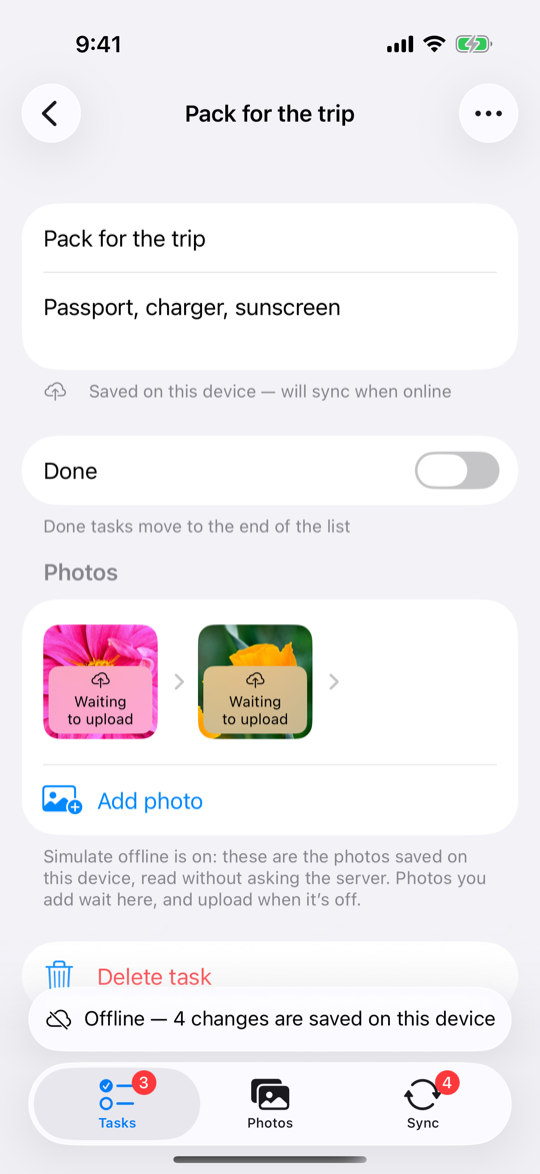
An upload that fails is marked Upload failed, with the reason, and is tried again when the
network comes back. Retry and Remove, on a long press or in the photo's viewer, try it now or
delete it from the device; when the server refused it for good (Storage's policies, say, or a task
that is gone), Retry is switched off and only Remove helps. A waiting photo can be removed, but not
while it uploads. Deleting a task, Clear local cache and Start over remove the photos waiting
to upload too: they are the app's own files, which the library's clearLocalData() does not touch.
Delete photo, on a long press, needs the network, as every change to a stored photo does. The photos already on the device still show offline; while Simulate offline is on, the task's photo list is read from the device alone, and says so. Delete task, the last row of a task's screen, works offline as every task change does.
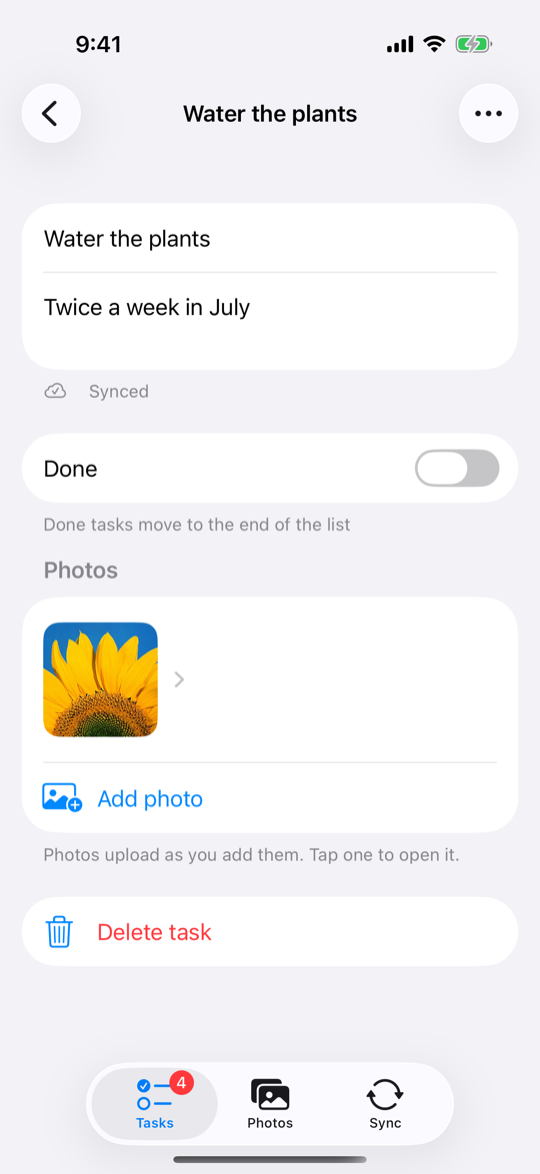
The Photos tab shows every photo, newest first, a page at a time, each marked once it is on the device; the ones waiting to upload are among them, with their mark. Tap one to open it:
- Share hands the device's copy of the file to the share sheet; Share link makes a link to a 512-pixel-wide copy that works for an hour, and the task's ⋯ menu makes one for each of its photos on the server at once.
- Details shows what Storage says about the file (its size, type and times, and whether it is there), its two addresses (the public one answers with an error, as the bucket is private), and when the device fetched its copy.
- Replace photo writes a new image over the file, at the same path; Move to another task and Duplicate to another task move or copy the file and write its row to match.
- A photo waiting to upload opens from the app's own copy, with Share, Remove, and Retry once it failed: Details, Share link, Replace, Move and Duplicate wait until it is on the server, and the viewer says so.
Every change to a stored photo needs the network, as every Storage write does.
Filter, search and the badges
The chips above the list (All, Open, Done, Recent) and the search field are
filters the server applies, not a sort of what the device holds: each is a query of its own, kept on
the device once it has been read. So offline, a chip or a search you have used online still shows
its rows, and one you have not says it has nothing saved yet; All, which the other screens share,
is always there. Recent is the last seven days: two conditions on created_at, which the Swift
package sends together in one group. Each task shows how many photos it has, from one query for the
tasks on screen.
The Tasks tab's badge counts the open tasks: at launch from the device, when it read them in the last hour, otherwise from the server. The Sync tab's badge counts the changes waiting and the changes refused.
Settings and live updates
The Sync tab's Settings has two switches, which last until the app restarts. Prefer fresh
data makes the task list ask the server before it shows anything, the device's rows only when the
server cannot be reached; off, the default, the saved rows show at once and are refreshed alongside.
Live updates, on by default, subscribes to Realtime's changes to tasks and task_photos and
applies each to the device's lists: edit a task in the dashboard's Table Editor and it changes in the
app without a refresh. Simulate offline and a lost network pause it, and it subscribes again, reading
both lists again, when the network is back.
Ask the server
The Sync tab's Server section asks the server how many of your tasks it holds and how many are
done, in all and this week ("On the server: 7 of 12 done · 3 this week"), with an exact count and
the database function tasks_done_count, called with a typed parameter and with a JSON one.
Mark all done, in the Tasks tab's menu, calls complete_all_tasks(), then reads the list
again, since the device learns of a function's changes only by asking. Neither is ever saved on the
device or queued, so offline both say they need the network.
Storage opens Browse photo files: Storage's own listing of the bucket, a folder per task and a file per photo, searched by name, by name or newest first, a page at a time.
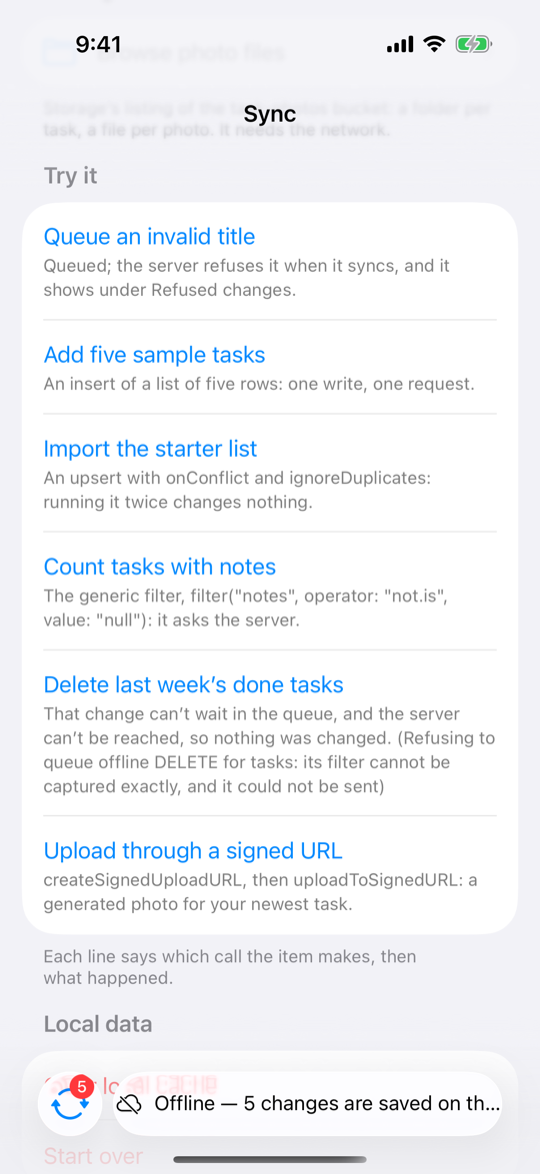
Try it
Each item says which call it makes, then what happened:
- Queue an invalid title: above.
- Add five sample tasks: one insert of a list of rows.
- Import the starter list: an upsert that ignores duplicates, under ids made from your user's; running it again changes nothing, even after you edited one.
- Count tasks with notes: the generic filter, naming its operator as text.
- Delete last week's done tasks: two conditions on one column, which the queue cannot hold, so the delete is sent at once; offline, it is refused with the library's own words, and nothing waits.
- Upload through a signed URL: a generated photo on your newest task, through a one-time upload URL, the way an upload is handed to code that holds no session.
Start over
Start over, under Local data, starts again as a new anonymous user with an empty list. In this order, it waits for a photo upload in progress and holds new ones, discards the changes not synced yet, deletes this user's photos, photo rows and tasks from your project, turns the client's network off, signs out, clears the device and then the photos waiting to upload, signs in as the new user, and turns the network back on. It needs the network: an anonymous user cannot sign back in to reach what it left behind, so offline, Simulate offline included, it refuses and changes nothing.
The steps after the deletes are the Swift guide's When the user changes, which says why the network is off in between; the Sync tab shows Offline (simulated) for that moment.
How the app uses the package
- One client, made at launch (
App/AppModel.swift) and shared by every screen, with every setting written out inApp/ClientSettings.swift, each with the default it keeps: the cache sizes, the data directory, the app's own connectivity signal from Network's path monitor,autoSync, the tables' keys and the log level. - Every call the app makes to it is in
Data/TaskRepository.swiftand its three extensions:TaskRepository+Photos.swiftfor the offline bucket,TaskRepository+PendingPhotos.swiftfor the photos waiting to upload, andTaskRepository+Server.swiftfor the database functions, the exact count and the server's row changes. Realtime's subscription, through supabase-swift, is inData/ServerChanges.swift. - Photos wait in the app's own queue.
Data/PendingPhotoQueue.swiftkeeps each picked photo,Data/PendingPhotoUploader.swiftuploads the waiting ones as the sync status allows, andData/TaskRepository+PendingPhotos.swiftfiles a photo, uploads it (the file, then the row, then the library's cached copy) and merges the waiting photos with the photo rows for the screens. - Every failure has its own words.
Data/SampleFailure.swiftgives eachOfflineErrorcode a sentence of its own, and logs a failure by its code, status and kind only, never its message. - The user comes from the token alone. supabase-swift's Auth signs in anonymously
(
Data/AnonymousSession.swift), and the client receives its access token throughConfig.accessToken. The client cannot tell one user's cached rows and queued writes from another's, so Start over changes users as the Swift guide's When the user changes does. Model tests pin that nothing of the first user is sent or shown afterward, with a list left open throughout. - Ids are made on the device, in lower case (
uuidString.lowercased()): Postgres writes a UUID in lower case, and the schema compares photo paths as text. Object names hold no%,?or#. - A private photo is downloaded only once a user is signed in. Without the user's token Storage answers "not found", which would drop a copy kept on the device.
- The tests build the library's values with the testing product: the in-memory client and its
stand-in server,
ManualClockfor a list's age, and the factories (pendingMutation,rejectedMutation,serverError,syncReport,querySnapshot,offlineResponse,cachedFileand the errors) for the app's words.
The Swift guide's code and the Swift tabs on the Behaviors pages are this app's own sections.
Troubleshooting
- The app says it is in demo mode.
Secrets.xcconfigis missing, is not beside the example file, or lacks one of the two keys. Add them and build again. - The workspace cannot resolve the SupabaseOffline package: a local binary target under
swift/LocalCore"does not contain a binary artifact". The library is not built yet: runscripts/prepare-local-swift-package.sh. If Xcode already has the workspace open, choose File > Packages > Resolve Package Versions, or close the workspace and open it again. - A build for an Intel simulator fails. The package's library has arm64 simulator code only:
build on Apple silicon, for a simulator or with
ARCHS=arm64. - It cannot sign in. Check that anonymous sign-ins are on (Authentication, Sign In / Providers) and that the project is not paused (If the project pauses). The app tries again each time the network comes back; until then the list says it is not signed in yet.
- A photo stays "Upload failed". Its reason is Storage's own answer: check that the
task-photosbucket exists, private, with its policies, as Set up Supabase creates it; the first migration is all an upload needs. A refusal like that is final for the photo, so Retry stays switched off: remove the photo, fix the cause, and add it again. - Mark all done or Ask the server fails online, or Replace and Move are refused. The project lacks the second migration: run it from Set up Supabase.
- Live updates stopped. The app could not subscribe: check that
tasksandtask_photosare in thesupabase_realtimepublication, as the schema puts them. Pull to refresh still works. - A device build fails to sign. Add
DEVELOPMENT_TEAMand a bundle identifier of your own toSecrets.xcconfig.